Use the Jezero app
The Jezero app is a terminal app for people: look at what your agents have stored, search it the way they do, and keep their plugins up to date. This guide covers installing it, each view, its keys, and the same features as plain commands for scripts.
Before you start
- A Jezero server, and this computer connected to it: see Connect a second computer. The app reads with this computer's key, so it sees exactly what this computer's agents see.
- Python 3.12 or newer and uv.
No server yet? Every view works on made-up data with jezero ui --demo.
Install and open it
- Install the
jezerocommand:
- If this computer has no key yet, create one and ask the server's admin to approve it:
It asks for the server address (https://YOUR-JEZERO), a name for this computer and
whether it should only read. The admin approves it with
jezero device approve.
- Open the app:
jezero with no command opens the app when it runs in a terminal; jezero ui does the
same anywhere.
The views
Press a number to switch views, or click the tabs. The top right corner shows the computer's name, whether it uploads or only reads, and the server.
1 · Home
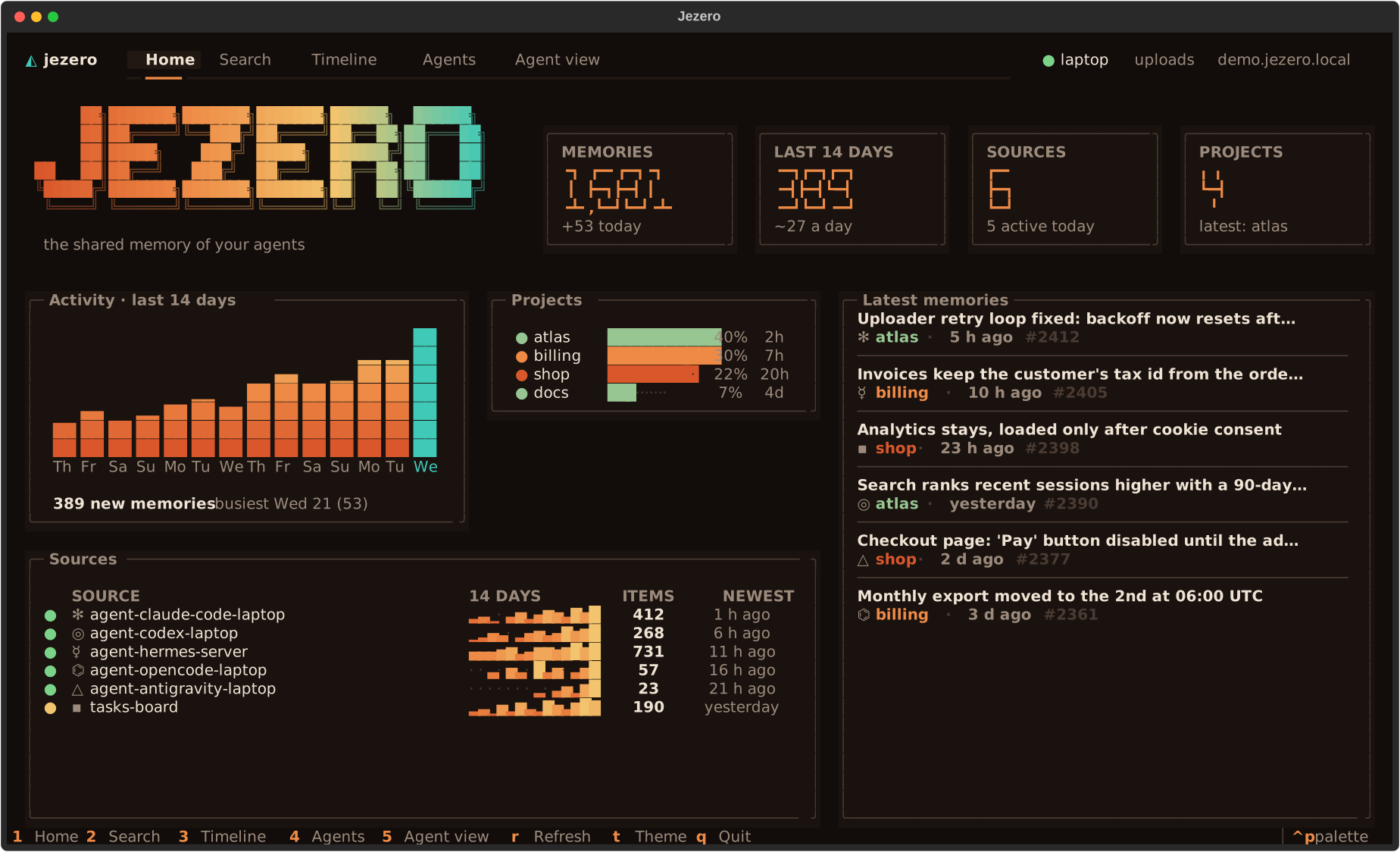
How much Jezero holds and how alive each source is:
- Counters: all items, items from the last 14 days, sources and projects.
- Activity: new items per day for two weeks; today's column is in the second colour.
- Projects: each project's share of all items, and how long ago it last changed.
- Sources: one line per source with a green dot when it produced something in the last day, amber within a week, grey after that; its activity over 14 days, its total and its newest item.
- Latest items: press
enteron one to read it in full.
2 · Search
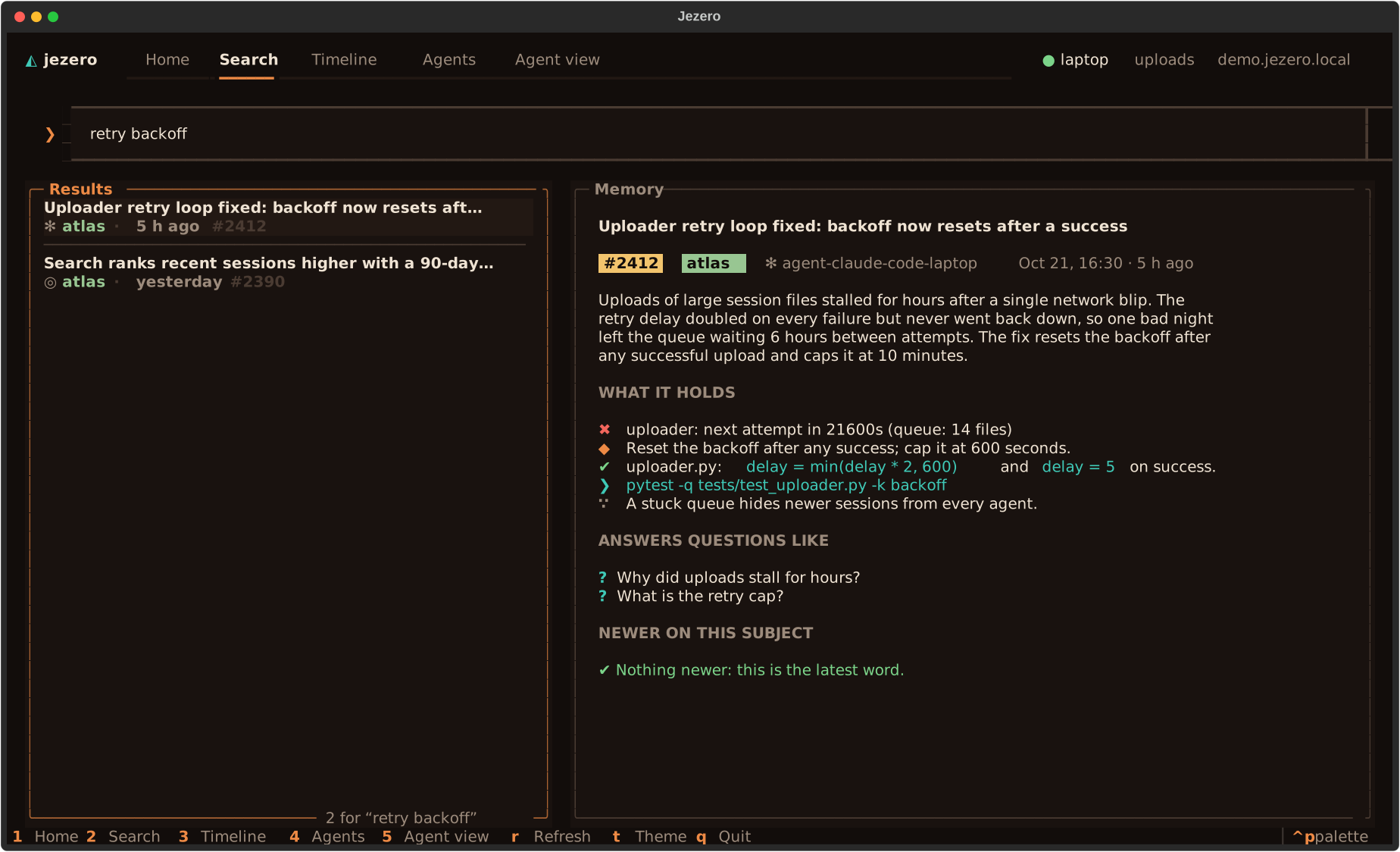
Type 2 to 5 distinctive words (names, ids, the exact text of an error) and press enter.
Results show the agent, project and age; the panel on the right shows the whole item: its
summary, its atoms (decisions, fixes, errors, commands, facts, reasons, risks) and the
questions it answers.
Press l on an item to check whether a later session changed it. It runs the same
later call agents are told to make before relying on a
decision, and lists the newer items, or confirms that this is the latest word. Under
NEWER ON THIS SUBJECT they match the item's subject; under NEWER IN THIS PROJECT (by
date, not by subject) nothing later matched it, and these are only the project's newer
items, which may be unrelated.
Tip
Matching is literal: if nothing comes back, try a synonym, a name or fewer words. The reasons are in How search ranks results.
3 · Timeline
Pick a project on the left to see what happened in it, day by day, newest first.
4 · Agents
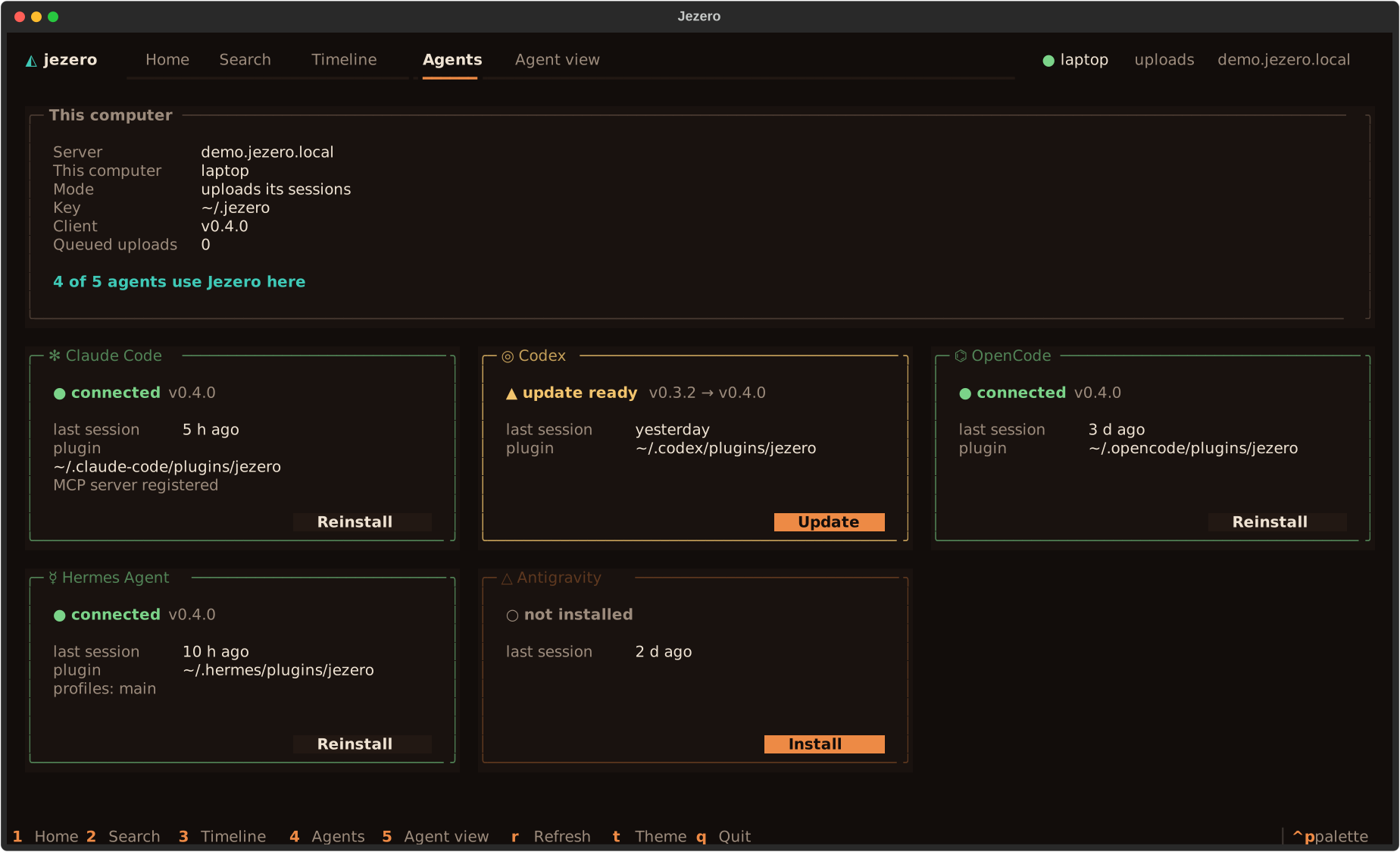
One card per agent that Jezero has a plugin for: Claude Code, Codex, OpenCode, Hermes
Agent and Antigravity. Each card says whether the agent is on this computer, whether Jezero
is installed in it and in which version, how it reaches the MCP server (MCP via
plugin, MCP server registered, or old MCP entry with the key in clear: run setup),
and when that agent last produced an item on any computer, the server's own sources
included.
- Install sets Jezero up in an agent that does not have it.
- Update appears when the installed version is older than this app's.
- Reinstall repeats the setup.
Every button first shows the exact command it will run and changes nothing until you confirm. The commands are the ones in Connect an agent.
5 · Agent view
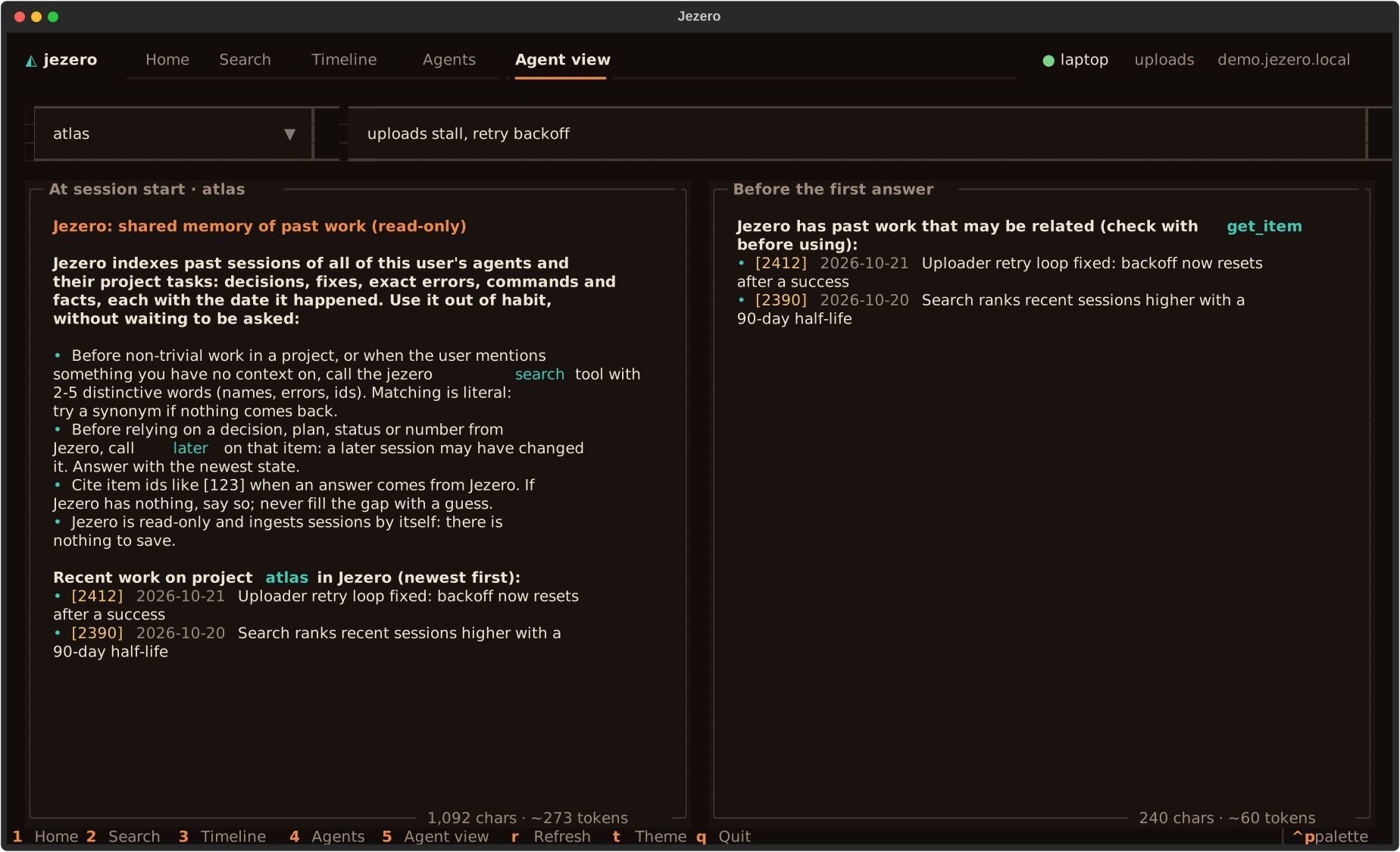
The exact text Jezero adds to an agent's context:
- At session start: the protocol that teaches the agent to use Jezero, and the recent work of the project you pick.
- Before the first answer: the related past work for a first message you type, or why nothing was added.
Each panel shows its size in characters and approximate tokens. Use it to check what a new session in a project will see, or why an agent did not get some context.
Keys
| Key | Action |
|---|---|
1 to 5 |
Switch view |
/ |
Go to the search box |
enter |
Search, or open the selected item |
l |
In Search: check whether something newer changed the selected item |
r |
Reload everything from the server |
t |
Switch between the night and dawn themes |
escape |
Leave a text box, or close a window |
ctrl+p |
Command palette |
q |
Quit |
The same, as commands
For scripts, or a quick look without opening the app. They use the same key and print with the same colours:
jezero find retry backoff          # search, like an agent
jezero show 2412 --newer           # one item in full, and what changed it later
jezero agents                      # the Agents view as a table
Add --demo to any of them to try it on made-up data. Every flag is in the
command reference.
Next steps
- Connect an agent: what each plugin does and how to install it by hand.
- How search ranks results: why a query finds what it finds.
- Troubleshooting: the app says "Not connected yet", and other symptoms.