Your first library
In about fifteen minutes you install Jezero on your computer, fill a library with sample items, search it, serve it over MCP and look at it in the Jezero app. Nothing here needs an API key or a second computer.
Before you start
You need:
- git, curl and Python 3.12 or newer.
- uv, which installs Jezero and its dependencies.
- Port 8765 free on this computer. If something already uses it, pick another port in
step 2 and use it everywhere this page says
8765.
Every command runs in a terminal, from the folder you clone in step 1, unless a step says otherwise.
1. Install Jezero
Clone the repository and install it with uv:
You should see:
uv run runs a command inside the project's own environment, so nothing is installed
system-wide.
2. Write a config
Jezero reads one TOML file, jezero.toml, from the current folder. The repository ships
jezero.example.toml, which documents every field and points
at sources you may not have yet. For this tutorial a small file is enough.
Create jezero.toml in the jezero folder with this content:
# A local library for the tutorial. jezero.example.toml documents every field.
[storage]
path = "data/jezero.db"

[server]
host = "127.0.0.1"
port = 8765
require_auth = false
require_auth = false lets anything on this computer read the library without a key.
Jezero accepts it only when the server listens on a loopback address such as 127.0.0.1.
You turn it on in step 7.
Check the file:
You should see:
config: /home/me/jezero/jezero.toml
database: /home/me/jezero/data/jezero.db
sqlite: 3.53.1  tokenizer: trigram remove_diacritics 1
server: http://127.0.0.1:8765/mcp
auth: OFF (loopback only)
summarizer: anthropic model=NOT SET
clients:
connectors:
environment variables (values never shown):
  - JEZERO_SUMMARIZER_API_KEY: missing
The summarizer and its API key are missing on purpose. The
summarizer is the language model that turns a raw session into
an item, and the sample items you import next are already summarised. check-config
exits with 0: it reports a missing model only once a connector needs one.
3. Create the library
You should see:
The whole library is this one SQLite file. Running init again
is safe: it only checks the file.
4. Import the sample items
The repository holds three synthetic items in examples/items.example.jsonl, one per line.
Look at the first one:
You should see:
{
    "external_id": "demo-001",
    "occurred_at": "2026-09-02T10:15:00+00:00",
    "project": "billing-api",
    "title": "Database migration rollback plan",
    "summary": "The agent prepared a rollback plan for the invoices table migration and tested it on a copy of the staging database.",
    "questions": [
        "How do we roll back the invoices migration?",
        "Was the migration rollback tested?"
    ],
    "atoms": [
        {
            "kind": "decision",
            "text": "Keep the old column for one release before dropping it."
        },
        ...
    ]
}
This is an item: one session of an agent, written down as a title, a short summary, the questions it answers, a project and the date it happened. Its atoms are the small exact pieces worth reusing: here a decision, a command that worked and the rationale. Search reads all of them.
Import the three items under the source name demo:
You should see:
Run the same command again and Jezero reports {"unchanged": 3}: an item is identified by
its source and external_id, so importing twice never duplicates it.
5. Search from the terminal
You should see:
Each line shows the item id, the score, the date, the source, the project and the title. Your score differs a little: recent items get a boost, so the score depends on today's date.
Matching ignores accents and works in any language, but it is literal. Try a Spanish word from the third item, then an English word that appears nowhere:
You should see:
Jezero does not guess that deploy and despliegue mean the same thing. Agents are told to try a synonym when a search comes back empty. How search ranks results explains why.
jezero search is the admin's view: it reads the database directly and sees every
source. Agents never use it.
6. Count what is stored
You should see:
7. Give the library a key
Agents read Jezero over the network, so the server asks each client for a key. The command calls it a token:
You should see:
Give this token to the client (shown once, never stored):
  ***
Put this digest in the config:
  token_sha256 = "DIGEST"
Copy the token somewhere safe: Jezero prints it once and keeps only its SHA-256 digest.
Open jezero.toml, set require_auth = true, and add a client with the digest. The file
becomes:
# A local library for the tutorial. jezero.example.toml documents every field.
[storage]
path = "data/jezero.db"

[server]
host = "127.0.0.1"
port = 8765
require_auth = true

[[clients]]
name = "tutorial"
token_sha256 = "DIGEST"
A client with no sources line may read every source. Check the file again:
You should see, among the other lines:
8. Serve the library over MCP
Open a second terminal, go to the same jezero folder and start the server:
You should see:
WARNING  client bundle not found at /home/me/jezero/dist/jezero-client.tar.gz: run python3 scripts/build_clients.py on the server to build it
INFO:     Started server process [12345]
INFO:     Waiting for application startup.
...
INFO:     Application startup complete.
INFO:     Uvicorn running on http://127.0.0.1:8765 (Press CTRL+C to quit)
The warning is about the plugin bundle that other computers download; this tutorial does not need it. Leave the server running. The server is read-only: it has no tool that writes to the library.
9. Query it like an agent
Back in the first terminal, put the token from step 7 in a variable:
Then call the search tool the way an agent does, with one JSON-RPC request:
curl -s http://127.0.0.1:8765/mcp \
  -H "Authorization: Bearer $JEZERO_TOKEN" \
  -H "Content-Type: application/json" \
  -H "Accept: application/json, text/event-stream" \
  -d '{"jsonrpc": "2.0", "id": 1, "method": "tools/call", "params": {"name": "search", "arguments": {"query": "migration rollback"}}}' \
  | python3 -c 'import json, sys; print(json.dumps(json.load(sys.stdin)["result"]["structuredContent"], indent=2))'
You should see:
{
  "count": 1,
  "results": [
    {
      "id": 1,
      "source": "demo",
      "external_id": "demo-001",
      "occurred_at": "2026-09-02T10:15:00+00:00",
      "title": "Database migration rollback plan",
      "summary": "The agent prepared a rollback plan for the invoices table migration and tested it on a copy of the staging database.",
      ...
      "project": "billing-api",
      "account": null,
      "original_ref": null,
      "trust": "own",
      "score": 1.6717
    }
  ]
}
Without the Authorization header the server answers 401 Unauthorized. The other tools
(get_item, later, timeline, list_sources) are listed in MCP
tools.
10. Connect this computer
The Jezero app and the jezero find command read the library the way an agent does: with
a key that belongs to this computer, a device. Create one, using
work-mac as this computer's name:
You should see, below the Jezero name in block letters:
Connect this computer to Jezero

Device key created. The key stays in /home/me/.jezero; the server only keeps its SHA-256 fingerprint.
Read-only: this computer's sessions are not uploaded.
Ask the Jezero admin to approve it with:

  jezero device approve work-mac SHA256 --read-only
--read-only means this computer searches Jezero but never uploads its own sessions. The
key stays in ~/.jezero; the printed SHA256 is its fingerprint, not a secret.
Note
If this computer is already connected to a Jezero server, connect says so and stops,
and the app keeps reading that server. Skip the rest of this step, and in step 11 open
only the demo.
You are also the admin, so approve the key. Copy the line connect printed and add
--sources "*":
You should see:
approved work-mac; the server picks up the new key within a second (backup: /home/me/jezero/jezero.toml.bak-20261022T034500Z)
A device may read agent-* sources by default, and the sample items live in demo;
--sources "*" lets this one read everything. The command added a [[clients]] block for
work-mac to jezero.toml. The running server noticed the change: there is nothing to
restart. List the keys it now knows:
You should see:
Search with the new key:
You should see:
#1  Database migration rollback plan
      ▪ billing-api · 49 d ago

1 results · jezero show ID for the whole memory
The age (49 d ago) depends on today's date. The app calls items memories. Show the
whole item, atoms included:
You should see a panel with the title, the summary, a section WHAT IT HOLDS with the three atoms and a section ANSWERS QUESTIONS LIKE with the questions.
11. Open the app
First try the app on made-up data, which needs no server:
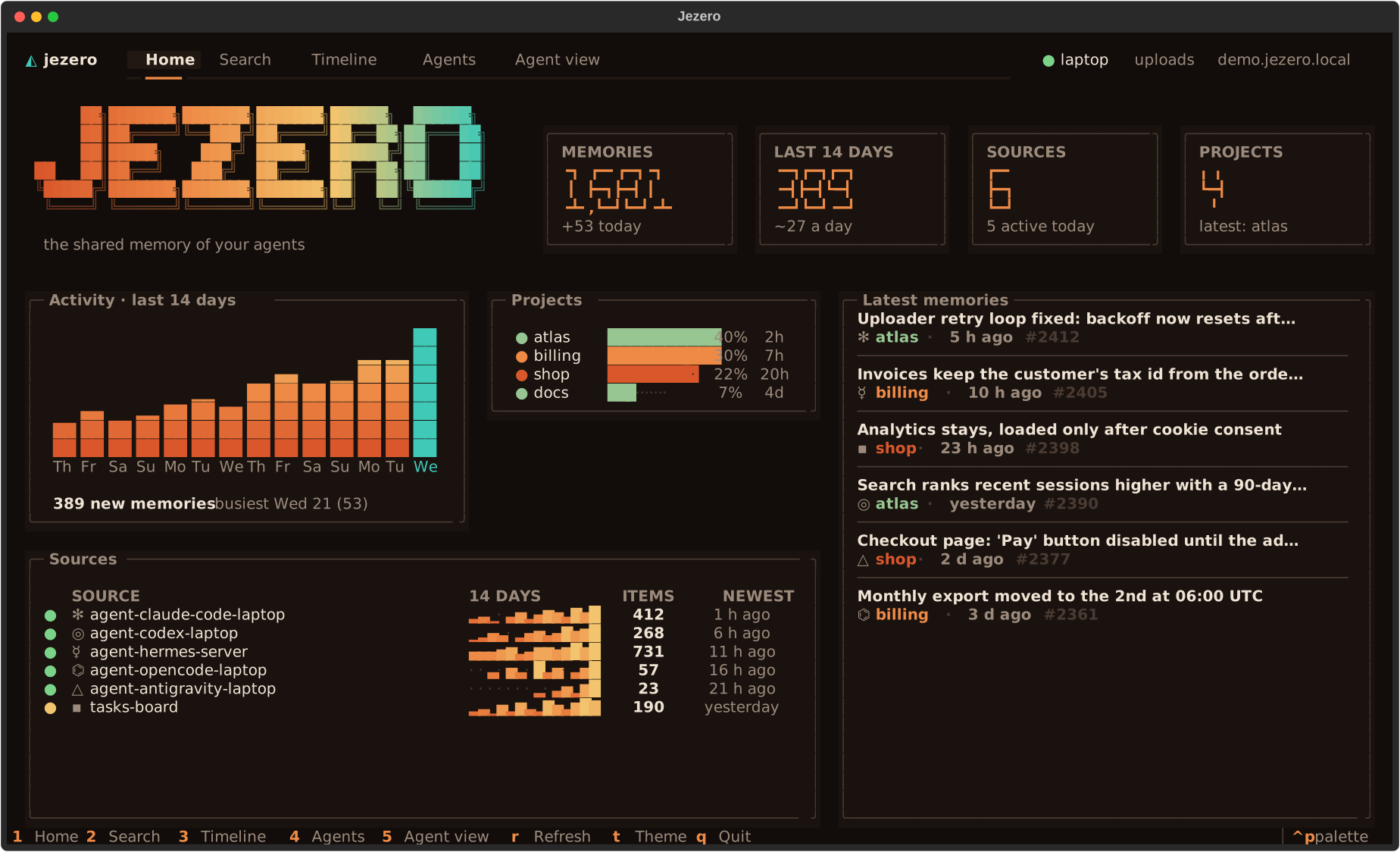
You should see the home screen, with counters, fourteen days of activity, projects, sources and the latest memories:
Press q to quit. Now open it on your own library:
The top bar shows work-mac, read-only and 127.0.0.1:8765, and the home screen lists
your three items under Latest memories. Press 2 for Search, type rollback and
press Enter: the result opens on the right with its atoms. Press q to quit. Use the
Jezero app covers every view.
12. Connect a real agent (optional)
An agent can now use the library with this computer's key from step 10. With
Claude Code installed, register the
client core's MCP bridge from the jezero folder. The bridge adds the key from
~/.jezero to each request, so Claude Code's configuration never holds it:
claude mcp add jezero -- python3 "$PWD/plugins/claude-code/core/jezero_client.py" mcp --agent claude-code
claude mcp list
You should see, among your other servers:
jezero: python3 /home/me/jezero/plugins/claude-code/core/jezero_client.py mcp --agent claude-code - ✔ Connected
Start claude in that folder and ask "Search Jezero: how do we roll back the invoices
migration?". The agent calls search and answers from item 1. Without a scope flag the
server is registered for this folder only; remove it with claude mcp remove jezero.
An MCP client that only speaks HTTP would need the key from step 7 in its own configuration instead: see Any other MCP client.
For day-to-day use, connect agents with the plugins instead: they bring the MCP server, the habit of searching Jezero and the upload of every session. See Connect an agent.
What you built
- A library in
data/jezero.dbwith three items, searchable from the terminal. - An MCP server on
127.0.0.1:8765that asks every client for its key. - Two clients in
jezero.toml:tutorial, a key you made withnew-token, andwork-mac, this computer's own key in~/.jezero.
Stop the server with Ctrl+C when you are done. Everything the tutorial created lives in
the jezero folder (jezero.toml, data/) and in ~/.jezero.
Next steps
- Connect a second computer: give a laptop its own key and watch its first real session arrive in the library.
- Add and tune sources: read your agents' real sessions, with a summarizer.
- Run Jezero as a service: keep the server and the connectors running, and reach them over HTTPS.
- Configuration: every field of
jezero.toml.